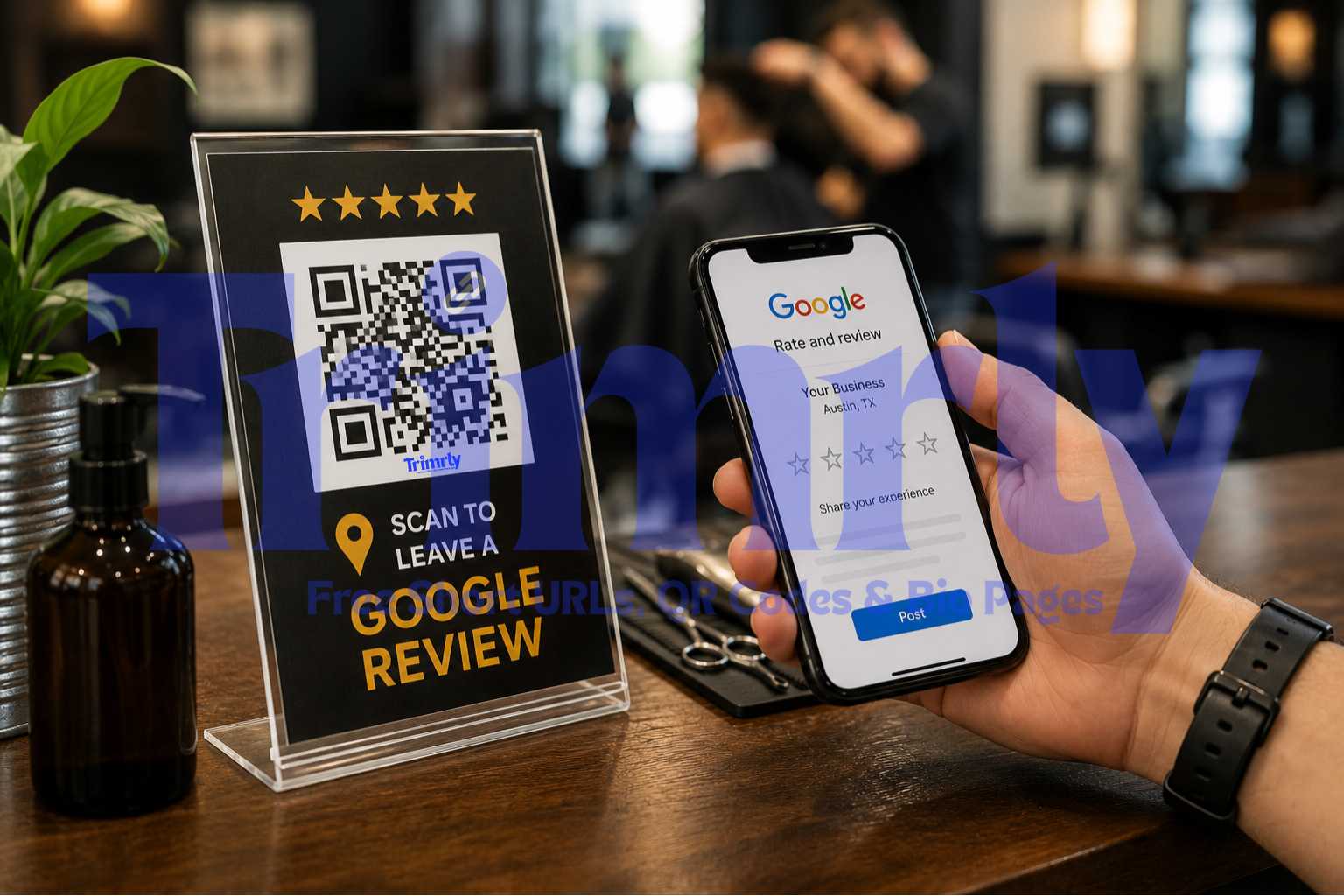
A barber in Austin, Texas had been cutting hair for nine years and had 31 Google reviews. A new shop opened two blocks away. Within four months, the new shop had 140 reviews, a 4.9 star rating, and was appearing above his listing in local Google searches for "barber near me."
The new shop had done one thing differently from day one: a small sign on every mirror with a QR code that said "Loved your cut? Leave us a review." No awkward ask from the barber. No email follow-up three days later when the customer had already forgotten. The request came at exactly the right moment, while the customer was sitting in the chair admiring the result, phone already in hand.
The Austin barber printed his own QR code the same week. By month three he had 97 new reviews. He was back at the top of local search results, and he added it to his wall of loyalty: new customers told him they found him because of his Google rating.
Why Most Businesses Have Far Fewer Reviews Than They Should
The gap between the experience a customer had and the review they leave is almost always a friction problem, not a satisfaction problem. A customer who genuinely enjoyed your service still needs to: remember to leave a review, search for your business on Google, find the review button, choose a star rating, and write something. That is five steps. Most people do not complete all five on their own initiative.
A QR code collapses those five steps into one. The customer scans, Google opens directly on the review screen, and they tap their stars. That is it. No searching. No navigating. No trying to remember the name of your business later that night.
The best moment to ask for a review is when the customer is still experiencing the positive feeling from their purchase or service. That window is short: usually 5 to 15 minutes. Email follow-ups sent the next day or three days later arrive after that emotional peak has passed. A QR code placed where the customer sees it at the moment of satisfaction is perfectly timed in a way that no digital follow-up ever is.
What Your Google Review QR Code Setup Looks Like
What happens when a customer scans it
The QR code links to a shortened URL powered by Trimrly. That short link redirects to your Google Business Profile review page. The customer's phone opens directly on the star rating screen. No search, no scrolling, no navigation.
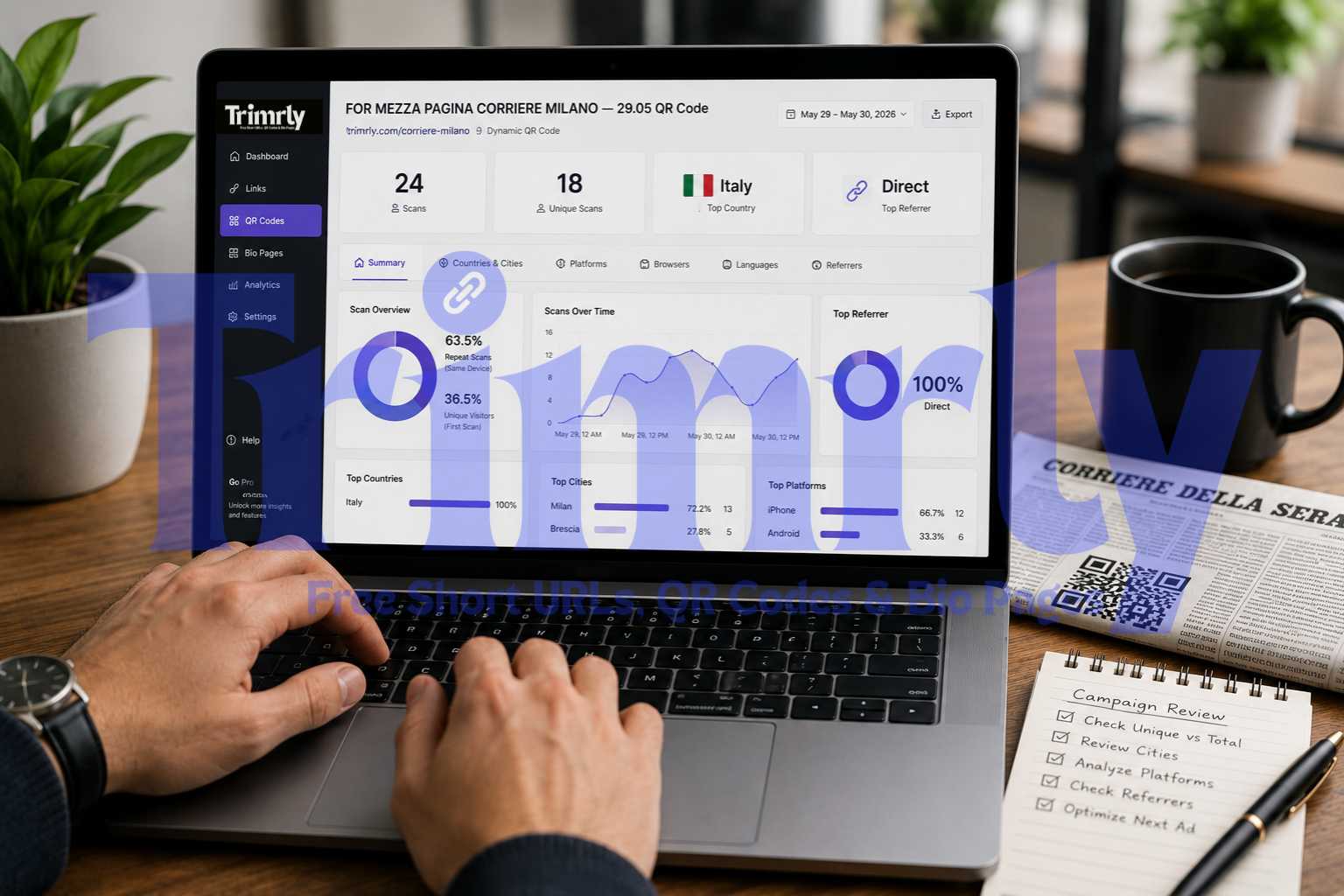
Every scan is recorded in your Trimrly dashboard with a timestamp, device type, and location. You can see exactly how many people scanned your review code each day, which surface it was placed on (if you use different aliases per location), and what time of day most scans happen.
When you update your Google review link at any point, you change the destination in Trimrly in 20 seconds. The printed QR code stays identical. No reprint required.
A Real Result: 97 New Reviews in 90 Days
Marcus, Barber Shop Owner · Single Location, Austin TX
Marcus had operated his barbershop in Austin for nine years. He had 31 Google reviews accumulated over that time, most from his first year when a few loyal customers wrote unsolicited reviews. He never actively asked for more. A competitor opened nearby and quickly accumulated reviews through an aggressive QR code placement strategy.
Marcus printed a single A5 sign with a Trimrly QR code linking to his Google review page and placed it on each mirror station. The sign read: "Loved your cut? A quick review takes 30 seconds and means everything to us." He also added a smaller version to the bottom of his appointment reminder cards.
In the first 30 days, he received 34 new reviews, all 4 or 5 stars. By day 90, he had 97 new reviews and his average rating had risen from 4.3 to 4.8 stars. His listing reappeared in the top three local search results for "barber Austin" and "barber near me." He tracked 203 QR code scans in those 90 days through his Trimrly dashboard, meaning roughly one in two people who scanned actually left a review, which is a conversion rate most digital review campaigns never approach.
How to Find Your Google Review Link
Before creating a QR code, you need the direct URL that opens your Google review form. There are two ways to find it.
Method 1: From Google Business Profile (recommended)
Search your business name on Google
Open Google and search for your business name. Your Google Business Profile panel appears on the right side of the results page with your rating, hours, and photos.
Click "Get more reviews"
Inside your Business Profile panel (you must be logged in as the owner), look for the "Get more reviews" button or "Share review form" option. Click it. Google generates a direct review link.
Copy the link
Copy the URL Google provides. It looks something like: g.page/r/AbCdEfGhIjKlMnOp/review. This is your direct review link. Paste it somewhere safe. You will use it in the next section.
Method 2: From Google Maps
Search your business on Google Maps. Click on your listing. Click "Write a review." Copy the URL from your browser address bar. This URL opens the review form directly and works as your QR destination.
Before building any QR code, paste your review link into a private browser tab and confirm it opens directly on the star rating screen. Some links open the business profile first rather than the review form. If yours does that, go back to Google Business Profile and use the "Get more reviews" method to get the cleaner direct link.
How to Create Your Google Review QR Code on Trimrly
Shorten your Google review link first
Google review links are long and contain random characters. Paste yours into Trimrly's free URL shortener and create a readable alias like trimrly.com/your-business-review. This short link also lets you track exactly how many people clicked before the QR redirect happened.
Create a free Trimrly account if you have not already
Go to trimrly.com/user/register. No credit card. The free plan gives you 20 dynamic QR codes per month, 50 short links, and full scan and click analytics on everything permanently.
Generate the QR code from the short link
Go to trimrly.com/free-qr-codes-generator and paste your short link (not the long Google URL) as the destination. This generates a dynamic QR code. If your Google review URL ever changes, you update the short link destination in Trimrly. The printed QR code stays identical.
Keep the design clean and high-contrast
Dark modules on white background. No inverted colors. Minimum size of 4 cm x 4 cm for counter placement at arm's length. Add your business name or "Leave us a Google review" as text above or below the code rather than inside it. A logo inside the code requires level H error correction, otherwise it breaks scan reliability.
Download as SVG for print
Select SVG format. SVG is a vector file that prints sharp at any size. Send it directly to a local print shop along with your sign or tent card design. If you are designing in Canva, import the SVG and size it at 4 to 6 cm on your tent card design before exporting as print-ready PDF.
Test on two phones before printing anything
Scan the code on an iPhone and an Android. Confirm both open directly on the Google review star rating screen, not just the business profile page. If either device lands on the profile rather than the form, check that your destination URL is the direct review link from Google Business Profile, not a general Maps URL.
Create Your Google Review QR Code Free
Dynamic codes with full scan tracking. SVG download included. 20 free QR codes per month. No credit card. No expiry.
Where to Place Your Google Review QR Code
Placement determines whether customers actually see and scan the code. The best surfaces are ones the customer is already looking at or holding at the moment their experience peaks.
Counter or Mirror Sign
The single highest-converting placement for most service businesses. The customer is facing you, phone in pocket, waiting or finishing up. A small laminated sign at eye level is seen by almost every customer.
Highest scan rate
Receipt or Invoice Footer
Print the QR code and "Review us on Google" at the bottom of every receipt. The customer is already looking at the paper. Works for retail, restaurants, service businesses, and tradespeople.
Zero extra cost
Packaging Insert
A small printed card inside every order: "Enjoying your purchase? A 30-second review helps us more than you know." Reaches e-commerce customers at the moment they open their order.
E-commerce gold
Table Tent Card
Restaurants and cafes: a tent card on every table that says "Enjoyed your meal?" with the QR code. Works during and after the meal when satisfaction is highest.
Great for hospitality
Exit Door Sign
A sign at eye level by the exit catches customers as they leave. The message "How did we do today?" with the QR code positioned at the last thing they see before they walk out.
Last-touch placement
Appointment Card
For service businesses that book appointments: print the QR code on the back of appointment reminder cards. Customers hold this card, keep it in their wallet, and often scan days later.
Service businesses
"The right moment to ask for a review is not after the customer has left. It is while they are still feeling good about being there."
Tracking Your Review QR Code Scans
Every dynamic QR code from Trimrly records scan data automatically. For a Google review code, this data is particularly useful.
If you place QR codes at multiple locations in your business (counter, table, exit door) using separate Trimrly aliases for each, you can see which placement drives the most scans. A barbershop that places codes on mirrors, at the register, and on appointment cards can measure each independently. That data often reveals a clear winner that gets two to three times more scans than the others, allowing you to focus reprinting budget on the highest-converting surface.
Scan timestamps tell you when customers are most engaged. If 70% of your scans happen between 12 PM and 2 PM, you know your lunch crowd is your most review-motivated segment. That is also the segment most worth investing in for upsells, loyalty programs, and promotions, because they are already demonstrating above-average engagement.
The Message That Gets More People to Scan and Review
The text on your QR code sign matters almost as much as the placement. Here is what consistently works versus what gets ignored.
| Message Type | Example | Scan Rate |
|---|---|---|
| Time-specific ask | "A 30-second review means everything to a small business" | Highest |
| Emotional hook | "Loved your experience? Tell Google." | High |
| Direct instruction | "Scan to leave us a Google review" | Good |
| Generic label | "Review us online" | Average |
| No label at all | Just a QR code with no text | Lowest |
The two elements that consistently increase scan rates are telling the customer how long it takes ("30 seconds") and making the emotional ask feel genuine rather than corporate. "A 30-second review means everything to a small business" outperforms "Please leave us a review" in almost every test because it addresses both the effort concern and the reason to bother.
Mistakes That Reduce Review QR Code Effectiveness
- ✕
Linking to your Google Maps listing instead of the direct review form. A link that opens your profile page requires the customer to find and tap the "Write a review" button themselves. That extra step causes significant drop-off. Always use the direct review link from Google Business Profile.
- ✕
Using a static QR code. If Google ever changes your review URL, or if you claim your Business Profile under a new account, a static code becomes permanently broken. A dynamic Trimrly code lets you update the destination in 20 seconds without reprinting anything.
- ✕
Printing the code too small for the placement distance. A code on a counter sign viewed from 50 to 80 cm needs to be at least 4 cm x 4 cm. A code on a window seen from 1 to 2 metres needs to be at least 8 to 10 cm. Always test at the actual viewing distance before the print run.
- ✕
Placing it somewhere the customer cannot conveniently scan. A QR code on the floor, on the ceiling, or behind a counter where the customer cannot hold their phone comfortably will not get scanned. The customer needs to be able to point their camera at it without moving from where they are standing or sitting.
- ✕
Asking for reviews from unhappy customers. A QR code sign placed at checkout catches all customers. If you have had a service failure with a specific customer, actively direct them to your staff or management rather than the review form. Proactively resolving complaints before they become public reviews is always the better outcome.
- ✓
Responding to every review you receive. Businesses that respond to reviews consistently receive more reviews over time. Google surfaces businesses with active review engagement in local search. A short, genuine response to each new review (positive or negative) signals to Google and to future customers that you are actively engaged with your community.
- ✓
Checking scan analytics weekly. Your Trimrly dashboard shows scan volume by day and hour. If scans drop for two consecutive weeks, check whether the physical sign has been moved, damaged, or covered. A sudden drop in scans almost always has a physical cause that is easy to fix once you know to look for it.
Connecting Your Review Strategy to Your Full Link Setup
A Google review QR code is one part of a larger system. The same Trimrly account that powers your review code also handles your other business QR codes and links.
If you already have a restaurant QR menu, a business card QR code, or a short link in your Instagram bio, adding a review code takes less than three minutes and uses the same dashboard. All scan and click data for every code appears in one place. You can compare which surfaces are driving the most engagement across your entire physical and digital presence without logging into multiple tools.
For businesses with multiple locations: create a separate review QR code for each location using a different Trimrly alias. Each code links to that location's specific Google review page. Each code tracks its own scans independently. You can see which location is driving the most review activity and which one needs a more prominent sign placement.
If you also run a Trimrly bio page for your Instagram, adding a "Leave us a Google review" button to that bio page creates a second digital path to reviews alongside your physical QR code. The button click data from the bio page and the QR scan data from in-store both appear in your single Trimrly dashboard, giving you a complete picture of where your review traffic is coming from.
Frequently Asked Questions
Yes, and the results are consistently significant. The core reason is timing and friction reduction. A QR code placed where customers are at their moment of highest satisfaction eliminates the search and navigation steps that cause most people to abandon the review process. Businesses that deploy a well-placed review QR code typically see their monthly review volume increase by 3 to 10 times within the first 60 days.
Log into Google Business Profile, search your business name on Google while signed in as the owner, and look for the "Get more reviews" or "Share review form" button in your Business Profile panel. Click it and Google generates your direct review link. Copy that URL. It opens the review star rating screen directly without requiring customers to navigate your profile first.
Always use a dynamic QR code. Google review URLs can change if you update your Business Profile, transfer ownership, or if Google changes its URL structure. A dynamic code from Trimrly lets you update the destination URL in 20 seconds without reprinting any signs. A static code is permanently broken if the destination URL changes, requiring a full reprint of all your signs and materials.
Asking customers to leave a review is fully permitted by Google's review policies. What Google prohibits is incentivizing reviews (offering discounts or gifts in exchange for reviews), soliciting reviews only from customers you know will leave positive ones, and posting fake reviews. A QR code that simply makes the review process easier is completely compliant with Google's policies.
Google does not publish a specific review count threshold for local ranking. What is consistently observed is that businesses with a higher volume of recent reviews and a rating above 4.0 appear more frequently in local search results and Google Maps. "Recent" matters significantly: a business that receives 10 new reviews per month consistently outperforms a business with 200 older reviews and no new activity. The QR code approach is effective partly because it generates ongoing review volume rather than a one-time spike.