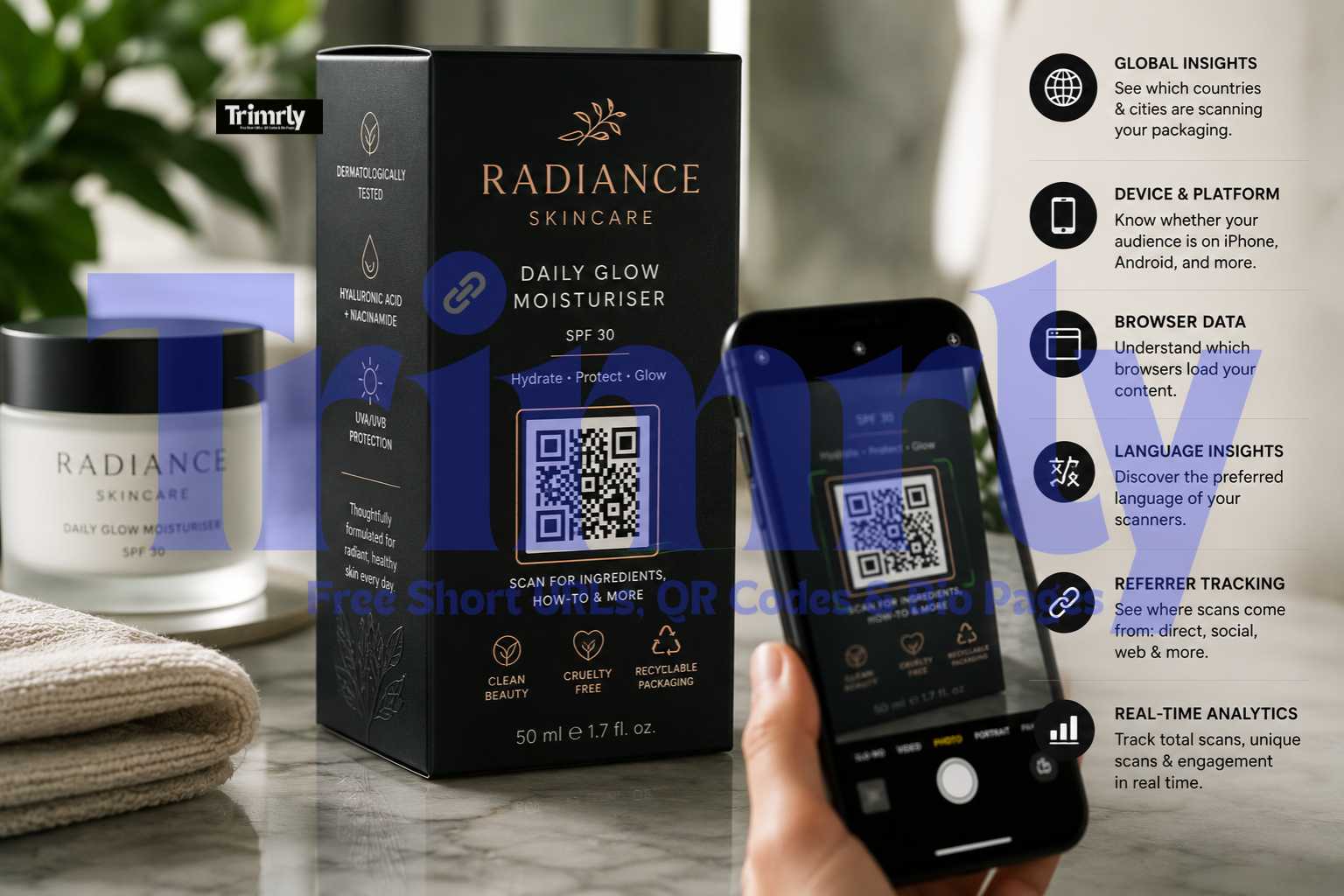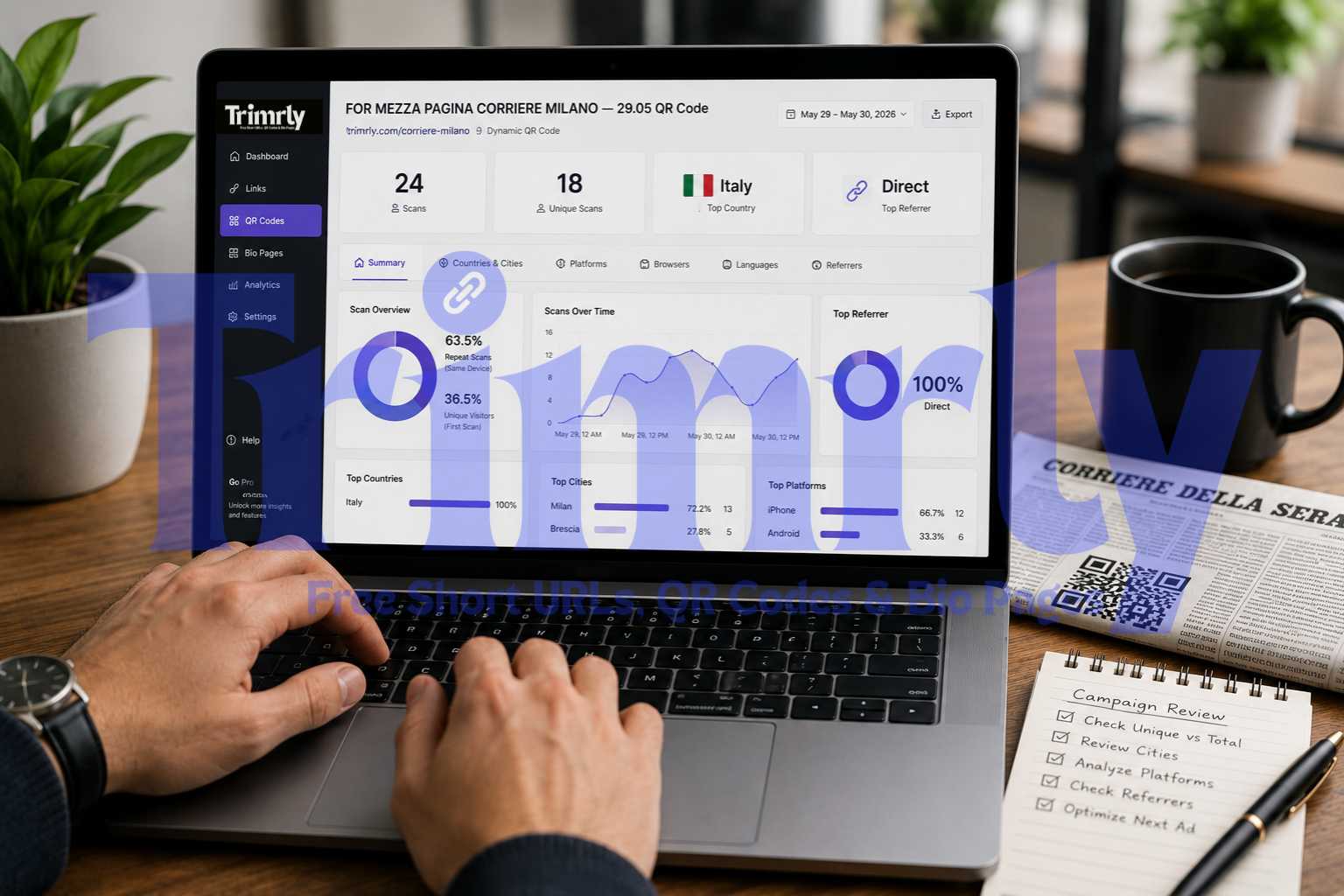

You print a thousand flyers. You put a QR code on every one. They go out at an event, in a retail space, on a delivery package. Over the next two weeks, you check GA4 — and you see a bump in direct traffic, maybe 200 or 300 sessions. Maybe. Or maybe the sessions are there but you cannot separate them from people who genuinely typed your URL, opened a bookmark, or clicked a link from a WhatsApp message that stripped its referrer.
This is the default state of QR code analytics for the majority of businesses running print and offline campaigns in 2026. GA4 does not automatically recognise QR codes as a channel. In Google Analytics 4, a QR scan is treated as a standard URL click unless it is explicitly identified using UTM parameters or custom channel grouping rules. GA4 is built to interpret digital referrers such as websites, ads, and emails. QR codes originate in the physical world, so GA4 receives no native signal that a session started from a QR scan.
That is not a GA4 limitation to work around. It is a labelling problem to solve before the QR code is printed. This guide is the complete solution — from the UTM parameters you need, to how Trimrly's dynamic short links slot into the stack, to how to build a custom QR channel in GA4 so your offline print traffic has its own clean row in every report.
Why QR Traffic Disappears Into Direct — The Mechanism
Understanding why the problem exists makes the solution obvious. GA4 processes traffic sources using a hierarchy: ad click data first, then UTM parameters, then HTTP referrer, then nothing. When GA4 finds nothing — no UTM, no referrer, no ad click signal — it labels the session Direct. Direct is the fallback, not a channel. It means GA4 failed to identify the source, not that a human typed your URL.
A QR code scan opens your destination URL in the phone's default browser. There is no referring page — the scan came from the physical world, not from another webpage. No HTTP referrer is transmitted. If there are no UTM parameters in the URL, GA4 finds nothing in the hierarchy and labels the session (direct) / (none). The scan is indistinguishable from a bookmark click, a typed URL, or a link from a messaging app that stripped its referrer.
Traditional QR codes are attribution dead ends. A static QR code encodes a URL and nothing else — when someone scans it, their phone opens the URL directly. No campaign source. No medium. No GA4 event. The resulting traffic shows up in Google Analytics as direct traffic, indistinguishable from someone typing your URL into a browser.
The same scan. The same visitor. The same conversion. With UTMs, GA4 can attribute it to the exact flyer, packaging panel, or event display that caused it. Without UTMs, it is noise in the direct bucket.
The Three-Layer Stack: UTMs + Dynamic Short Link + QR Code
Clean QR tracking in GA4 requires three components working together. Each layer solves a different problem, and skipping any one of them creates a gap in the data.
A QR code generated directly from a long UTM-tagged URL produces a dense, complex code. Long URLs mean more data encoded, which means more QR modules, which means a harder-to-scan code — especially at small print sizes or in imperfect lighting. A shorter link creates a simpler, less dense code that is quicker and more reliable for all users to scan. More critically, a dynamic Trimrly short link makes the QR code editable: if you need to update the destination, the UTM parameters, or the landing page after print, you change the short link's destination — the printed QR code stays identical and redirects correctly.
The Exact UTM Structure for QR Code Campaigns in 2026
UTM parameters tell you what happens after the scan. Dynamic QR code analytics tell you about the scan itself. Getting the UTM structure right is the difference between a GA4 report that is readable a year later and one that is full of inconsistently named campaigns that cannot be compared.
| utm_source | Identifies the specific origin of the scan. Use a descriptive name for the physical material or placement. Keep consistent across all QR campaigns so you can filter GA4 by source. | flyer, poster, packaging, receipt, menu, lanyard, window-sign |
| utm_medium | For all QR code campaigns, set this consistently to qr-code or print. Using a consistent medium value means you can filter your entire GA4 reports to show only QR-generated traffic across all sources and campaigns at once — an essential view for channel-level ROI analysis. | qr-code |
| utm_campaign | Names the specific marketing campaign the QR code belongs to. Always include a date or season suffix so you can distinguish recurring campaigns year-over-year. GA4 is case-sensitive — use lowercase with hyphens throughout. | summer-sale-2026, product-launch-q2, trade-show-dubai, loyalty-may-2026 |
| utm_content | Identifies the specific placement within a campaign — useful when the same campaign has QR codes in multiple physical locations or on multiple materials. This is what lets you compare "which packaging panel performed best." | front-panel, back-panel, counter-sign, table-tent, exit-door |
| utm_term | Optional for QR campaigns. Can be used to identify the product SKU, the store location, or the event name when running multi-location or multi-product campaigns at scale. | store-dubai-mall, sku-0042, event-london-2026 |
A Real UTM-Tagged URL for a QR Code on a Retail Flyer
Here is what a complete, correctly structured UTM URL looks like before it is shortened. Every parameter is lowercase with hyphens — GA4 is case-sensitive, so inconsistent capitalisation creates duplicate categories in your reports.
Always include a year (and optionally a season) in utm_campaign. Without it, a campaign named summer-sale that runs in 2025 and 2026 will merge all data under one name — making year-over-year comparison impossible. Use summer-sale-2025 and summer-sale-2026 as distinct campaign names. This applies to every recurring campaign: seasonal promotions, trade shows that happen annually, and product launches with similar names across cycles.
How to Set Up a Custom QR Code Channel in GA4
Even with perfect UTMs, GA4 will not automatically create a "QR Code" channel in your acquisition reports. GA4 does not include a built-in QR code channel, but with intentional UTM tagging and a custom channel group, QR traffic can be reported accurately across industries. You need to create the channel definition yourself — a one-time setup that takes under five minutes.
Verify UTM data is flowing correctly in the Realtime report first
Before setting up any channel group, confirm your UTM tagging is working. Scan your QR code on a real device, then immediately open GA4 and go to Reports → Realtime. Scan your QR code from multiple devices before you approve the print run. Check that: the code scans reliably from your intended distance; the destination URL loads correctly with all UTM parameters intact; and the GA4 Realtime report shows the visit with correct attribution. If you see a live session with the correct
utm_sourceandutm_mediumvalues, your tagging is working correctly.Create a Custom Channel Group in GA4 Admin
In GA4, navigate to Admin → Data Display → Channel Groups → Create new channel group. Name it "QR Code" or "Offline QR." Add a rule with the condition: Session medium exactly matches
qr-code(or whatever medium value you have standardised on). Save the channel group. From this point forward, every session arriving withutm_medium=qr-codewill be cleanly grouped under your custom QR Code channel in all acquisition reports — distinct from organic, paid, email, and social.View QR traffic in the Traffic Acquisition report
Open GA4 and navigate to Reports → Acquisition → Traffic Acquisition. Locate the primary dimension dropdown and change it to Session medium. You should see
qr-codelisted if you used the recommended naming convention. Add a secondary dimension by clicking the blue "+" icon and searching for Session source. This customised view reveals the specific sources — such as different store locations or print materials — that are driving traffic.Mark conversion events against QR traffic
In GA4, mark your key actions as Conversion Events:
purchase,form_submit,sign_up,add_to_cart, or any custom event that represents a meaningful user action. Once marked as conversions, these appear in the Acquisition reports alongside your UTM dimensions. You can now see exactly how many purchases, signups, or bookings came from each QR campaign, from each specific placement (front panel vs back panel), from each material type (flyer vs packaging vs event signage). That is the complete print-to-purchase attribution chain — in a single GA4 report.Build an Exploration report for cross-campaign QR comparison
GA4's standard reports show one dimension at a time. For deeper QR analysis — comparing all placements across all campaigns in a single view — go to Explore → Blank Exploration. Add dimensions: Session campaign, Session source, Session medium. Add metrics: Sessions, Conversions, Revenue (or your relevant conversion metric). Filter to medium = qr-code. This gives you a clean table showing every QR campaign's performance side by side — the data that justifies or recalibrates your print budget each quarter.
What Clean QR Tracking Actually Revealed: A Retail Case Study
They Were Spending £3,200 Per Month on Flyers. GA4 Said the Revenue Was Zero. The Truth Was Different.
A mid-size UK retail brand was running monthly flyer campaigns — 8,000 printed per month, distributed in two postcodes. The campaigns included a QR code on the front panel. Their GA4 dashboard showed no attributable revenue from print. The marketing team was close to cancelling the flyer budget entirely.
Before cancelling, they implemented the full three-layer stack: UTM-tagged destination URLs, Trimrly dynamic short links as the QR destination, and a custom GA4 QR channel group. The first month of tagged campaigns revealed that the flyers had been driving approximately 340 sessions per month — all of which had been landing in (direct) / (none). Those sessions had a 4.1% purchase conversion rate, generating an average of 14 purchases per month at an average order value of £62.
The campaigns had been generating approximately £870 in monthly revenue that GA4 had attributed to nothing. The cost per acquisition from the flyers — £3,200 divided by 14 purchases — was £228 per sale, which was above their target. But it was measurable. They reformatted the flyer to lead with the QR code more prominently, moved the QR CTA copy from the back panel to the front, and tested a 15% first-order discount for QR scanners. Conversion rate increased to 7.3% in month two, bringing CPA down to £109 — within budget.
None of this was possible before UTM tagging. Without attribution, the correct decision would have appeared to be cancelling a campaign that was quietly working. The real decision — optimising a campaign with a measurable conversion rate — required the data that clean QR tracking provided.
Where Trimrly Fits in the GA4 + QR Stack
Trimrly operates at the short link layer — between the UTM-tagged destination URL and the QR code. This position gives it two distinct roles that GA4 alone cannot provide.
| Data or Feature | GA4 with UTMs | Trimrly Short Link Layer |
|---|---|---|
| Session source and medium attribution | Yes — reads UTM parameters | UTMs pass through unchanged |
| Conversion and revenue attribution | Yes — full conversion events | Not available — GA4 owns this layer |
| Scan count (pre-session, before page load) | Not available — GA4 fires on page load | Every scan recorded at redirect layer |
| Device type per scan | Via GA4 device reports | Per scan in Trimrly dashboard |
| Geographic location per scan | Via GA4 geographic reports | Per scan, per link, independent of GA4 |
| Scan timestamps (hourly) | Not available at QR-placement level | Per scan, per link |
| Update destination after print without reprinting | Not available — GA4 does not control URLs | Update in 20 seconds from any browser |
| Compare scan volume vs session count | Not available — GA4 only sees page loads | Scans minus sessions = bounce rate at QR layer |
The comparison between Trimrly scan count and GA4 session count is a particularly useful metric that neither tool provides in isolation. If Trimrly records 400 scans and GA4 records 310 sessions for the same link in the same period, 90 people scanned the QR code but left before the page loaded — likely due to slow mobile load time, an unoptimised landing page, or a destination that mismatched the CTA on the print material. That gap is invisible without both layers of data.
Build Your GA4-Ready QR Stack Free
Dynamic QR codes generated from trackable short links. Every scan recorded in Trimrly. Every session attributed correctly in GA4. SVG download for sharp print. Editable destinations without reprinting. Free, forever.
The Mistakes That Break QR Tracking in GA4
- ✕
Encoding the long UTM URL directly into the QR code without a short link layer. This produces a dense, complex QR pattern that scans unreliably at smaller print sizes and in variable lighting. If the destination URL ever changes, the QR code is permanently broken. Dynamic Trimrly short links are always the middle layer — the QR code encodes the short link, which redirects to the UTM-tagged destination.
- ✕
Using inconsistent capitalisation in UTM parameter values. Always use lowercase letters for all UTM parameters. This prevents the accidental creation of duplicate categories and ensures that all your scan data remains consolidated in a single report.
utm_campaign=SummerSaleandutm_campaign=summersaleare two separate campaign records in GA4. If your team generates UTM links manually without a naming convention document, duplicate records are inevitable. - ✕
Not creating a custom QR channel group in GA4. Without a custom channel group, QR traffic may appear as "Unassigned" or get merged into the direct bucket even with correct UTMs, depending on how GA4 interprets the medium value. A custom channel group that explicitly maps
utm_medium=qr-codeto a "QR Code" channel ensures clean separation from organic, paid, email, and social in every report. - ✕
Sending QR scanners to the homepage instead of a specific landing page. One broken QR code on 10,000 printed pieces is an expensive mistake. Five minutes of testing prevents it. But equally damaging is sending mobile visitors — who have already scanned a QR code that promised a specific offer — to a generic homepage where they have to navigate to find it. Every QR code should link to a page built for one action. The post-scan journey should require zero additional decisions from the visitor.
- ✕
Using the same Trimrly alias for multiple placements without differentiation. If both the front-panel and back-panel QR codes on a product use the same short link, you cannot compare their performance. Use unique aliases per placement:
trimrly.com/sale-frontandtrimrly.com/sale-back, both pointing to the same UTM-tagged destination URL (with differentutm_contentvalues). Scan data in Trimrly differentiates by alias; GA4 differentiates by UTM content value. Both layers need unique identifiers to produce actionable data. - ✓
Build a UTM naming convention document before your first campaign and enforce it with a link builder template. The single most common cause of messy GA4 data is inconsistent UTM naming across a team or across campaigns over time. A shared Google Sheet with a UTM builder formula — where users select source and campaign from dropdown menus and the full URL is auto-generated — eliminates inconsistency entirely. Google's Campaign URL Builder is a free starting point; a team-specific template with your approved naming conventions is the production-grade version.
- ✓
Compare Trimrly scan counts against GA4 session counts monthly to identify landing page friction. The gap between scans and sessions is your QR campaign's bounce rate at the network layer — people who scanned but left before the page loaded. A growing gap signals a mobile performance problem, a slow server response, or a landing page that is not what the QR's CTA promised. Closing this gap has direct revenue impact and costs nothing except the comparison itself.
"The print budget is not the problem. The measurement gap is. Every untraceable QR scan is a data point you paid for and threw away."
Frequently Asked Questions
No. GA4 does not automatically recognise QR codes as a channel. In Google Analytics 4, a QR scan is treated as a standard URL click unless it is explicitly identified using UTM parameters or custom channel grouping rules. GA4 is built to interpret digital referrers such as websites, ads, and emails. QR codes originate in the physical world, so GA4 receives no native signal that a session started from a QR scan. Without UTM parameters, every QR scan appears in GA4 as direct traffic.
For all QR code campaigns, set utm_medium consistently to qr-code or print. Using a consistent medium value means you can filter your entire GA4 reports to show only QR-generated traffic across all sources and campaigns at once — an essential view for channel-level ROI analysis. Whichever value you choose, use it universally across your organisation. GA4 is case-sensitive; mixing qr-code and QR-Code creates separate records.
Three reasons. First, a long UTM-tagged URL produces a complex, dense QR pattern that scans unreliably at small sizes — a short link produces a simpler, more reliable code. Second, a dynamic Trimrly short link is editable after printing: if your destination URL changes, you update the short link in seconds without reprinting anything. Third, Trimrly records scan data — volume, device, geography, timestamp — at the redirect layer, before GA4 fires. This gives you two complementary data sources: Trimrly for scan-level data, GA4 for session and conversion data.
With correct UTM tagging (utm_medium=qr-code), navigate to GA4 → Reports → Acquisition → Traffic Acquisition. Change the primary dimension to "Session medium" and you will see qr-code as a row. Add "Session source" as a secondary dimension to break down by specific placement or material. For a dedicated QR Code channel that appears in standard channel reports, create a custom channel group in GA4 Admin → Data Display → Channel Groups with the rule: Session medium exactly matches qr-code.
Trimrly records a data point at the moment of the QR scan — before the destination page loads. GA4 records a session when the destination page loads and the GA4 tracking script fires. The gap between Trimrly scans and GA4 sessions is your landing page's mobile load performance: people who scanned but left before the page fully loaded. Trimrly also records scan-level data (device type, country, timestamp) independently of GA4 — useful when GA4 tracking is not installed on the destination or when you need scan data without requiring a page load.