You print flyers, distribute menus, or add QR codes to packaging. People scan, visit, and buy, yet your GA4 dashboard still lumps them under “direct.” That is wasted insight. With Trimrly’s free QR Code Generator and a few naming rules, every scan becomes measurable data. This article walks you through UTM setup, clean naming, analytics verification, and a real-world example.
Why GA4 and QR codes belong together
GA4 tracks how visitors arrive at your site, but it can only label traffic when each link carries UTM parameters. QR codes act as gateways from physical touchpoints—menus, posters, receipts, or boxes—into digital sessions. Without UTMs, GA4 only sees “direct” traffic, losing the context of where the journey began. When tagged correctly, each scan tells a story: which city, which flyer, and which campaign drove that session.
Why tracking fails for most teams
- No UTMs: Links are generated manually or copied from browsers.
- Inconsistent naming: Teams use mixed capitalization and punctuation.
- Static QRs: Once printed, they cannot be corrected or updated.
- No separation between channels: Offline and online data merge together.
These problems make attribution unreliable. Trimrly solves them with built-in UTM templates and dynamic editing, so even printed QRs remain editable.
What clean tracking looks like inside GA4
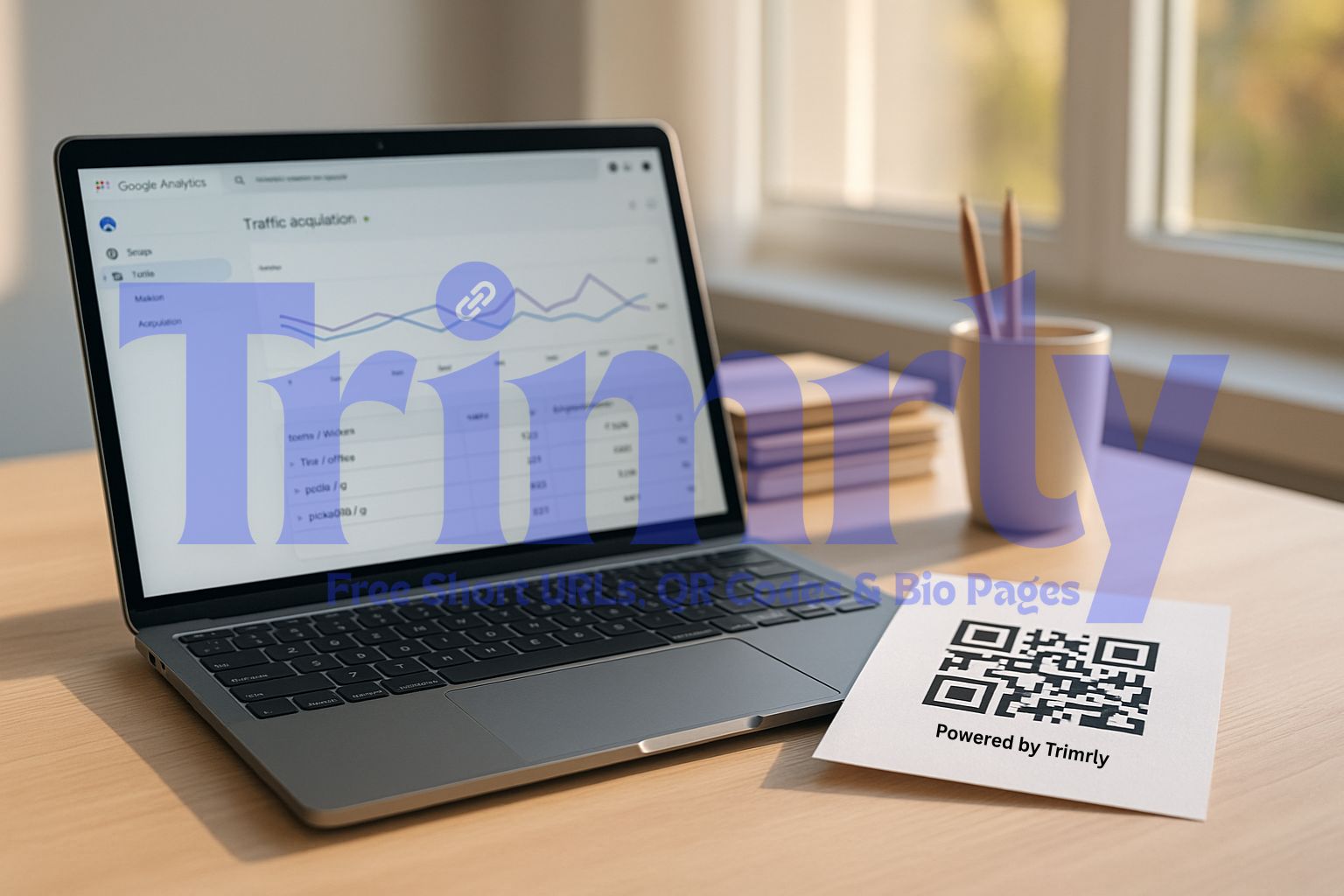
Below is an example of properly tagged QR scans as they appear in GA4’s traffic-acquisition report.
| Source | Medium | Campaign | Result |
|---|---|---|---|
| flyer | offline | spring-sale | ✅ Shows clear attribution |
| poster | qr | gym-launch | ✅ Groups correctly under campaign |
| packaging | qr | sample-kit | ✅ Links physical item to purchase |
Bad vs clean UTM examples
Consistency is everything. A few naming mistakes can fragment your reports.
| Example | Bad Tag | Clean Tag | Why it matters |
|---|---|---|---|
| Flyer | ?utm_source=qr&utm_medium=marketing&utm_campaign=SPRING SALE! | ?utm_source=flyer&utm_medium=offline&utm_campaign=spring-sale | Lowercase and hyphenated |
| Poster | ?utm_source=Poster&utm_medium=print&utm_campaign=Gym_Launch | ?utm_source=poster&utm_medium=qr&utm_campaign=gym-launch | Unified for easy filtering |
| Packaging | ?utm_source=ProductBox&utm_medium=Offline&utm_campaign=FreeSample | ?utm_source=packaging&utm_medium=qr&utm_campaign=sample-kit | Readable across SKUs |
Connect Trimrly and GA4 in five steps
- Open Trimrly QR Generator.
- Paste your destination URL and click “Add UTMs.”
- Use
source=flyer,medium=offline,campaign=spring-sale. - Select Dynamic QR to allow updates after printing.
- Enable “Track Scans” to view Trimrly analytics plus GA4 events.
Understanding GA4 reports
After your QR links go live, open GA4 → Reports → Acquisition → Traffic acquisition. Filter by source or medium. You’ll see scan sessions listed by flyer, poster, or packaging. Click into each to check engagement, conversion events, and user paths. This simple filter view replaces guesswork with proof of which physical touchpoints are working.
The offline-to-online funnel
Most small businesses rely heavily on local visibility: posters, brochures, or billboards. A QR scan is the moment that physical marketing becomes digital. The customer’s path goes: See → Scan → View → Purchase. Every one of those actions becomes trackable when GA4 receives UTM-tagged data. Instead of spending on print blindly, you can measure ROI the same way you do with online ads.
Real-world example: The coffee-shop experiment
A neighborhood coffee shop printed three QR codes using Trimrly. Each linked to a landing page with a distinct UTM source:
utm_source=cup&utm_medium=qr&utm_campaign=loyaltyutm_source=flyer&utm_medium=offline&utm_campaign=referralutm_source=counter&utm_medium=qr&utm_campaign=signup
After one month, GA4 recorded 1,238 sessions from QR sources. Cups generated 40 percent of traffic, flyers produced the best conversion rate, and counter codes drove repeat visits. With real data, the owner stopped printing generic flyers and expanded loyalty cups. That single adjustment saved hundreds in print costs while raising sales by 12 percent.
Measure success beyond clicks
- Scans per location: Which areas or branches perform best.
- Session quality: Time on site and engagement rate.
- Conversion tracking: Link scans to purchases or form submissions.
- ROI comparison: Print versus digital cost-per-acquisition.
Trimrly analytics shows real-time scan counts even before GA4 data propagates, so you can adjust designs or offers quickly.
Checklist for clean GA4 QR tracking
- Keep all UTM values lowercase and consistent.
- Use hyphens instead of spaces or underscores.
- Always include
source,medium, andcampaign. - Print a short link below each QR for manual typing.
- Test every QR on mobile before printing large runs.
Combine short links and QR for complete coverage
Not everyone scans codes—some still type URLs. Trimrly lets you generate a short link and QR that share the same UTMs. Both direct users to the same destination, ensuring all traffic is tracked properly. It’s small details like this that turn a basic QR into a reliable data channel.
FAQs
Can I reuse UTMs for online and offline campaigns?
Yes. Just differentiate mediums. Use medium=offline or medium=qr for print materials so GA4 can distinguish them from ads or email clicks.
Where can I see QR traffic inside GA4?
In GA4 go to Reports → Acquisition → Traffic acquisition. Filter by source or medium to compare QR performance against other channels. Custom Explorations can show scan to purchase flows.
What if I printed a wrong link?
Trimrly Dynamic QRs let you replace destinations without reprinting. Update the URL and the same code instantly redirects scanners to the correct page.
Can Trimrly send data directly to GA4?
Yes. Each scan automatically passes UTM data into GA4 so you don’t need any integration setup.
Is this method free?
Completely. Trimrly’s QR and short-link tools are free forever with built-in UTM fields and GA4 compatibility.
Parameters & UTM Builder
You can define custom parameters and UTM for each short link. These custom parameters will be added automatically to the long link. For example if you shorten https://trimrly.com and you set utm_source = email when a user clicks on the short link, the final url will become https://trimrly.com?utm_source=email
Dynamic Parameters/Parameter Forwarder
The script includes a dynamic parameter feature where it will automatically forward parameters to the final url. For example if you shorten https://trimrly.com and you get https://short.com/AXy12Z, you can assign parameters like https://short.com/AXy12Z?affiliateid=123 and the it will be forwarded to https://trimrly.com as https://trimrly.com?affiliateid=123