
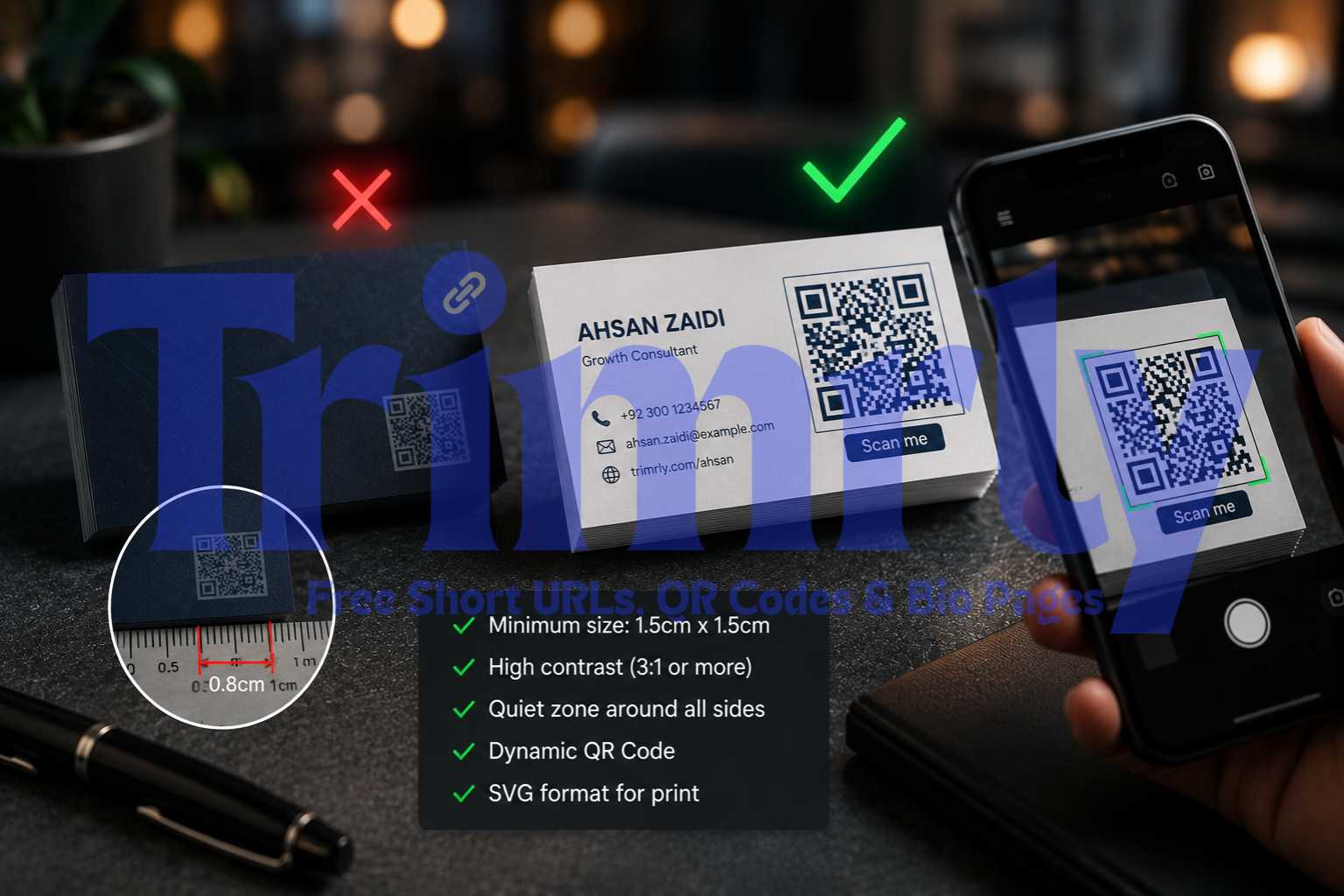
A sales consultant in Karachi ordered 500 business cards with a QR code linking to his LinkedIn profile. The code was 0.8 cm wide, printed in dark blue on a navy card background, and placed in the bottom corner with almost no surrounding white space. Nobody could scan it. The camera could not read the contrast. At that size, even a perfect code fails.
He reprinted. This time the code was larger, placed on a white section of the card, with a small "Scan me" label underneath. Contacts started actually using it at networking events. Three clients told him it was the reason they remembered to follow up.
Getting a QR code on a business card right comes down to a small set of technical decisions. Every one of them is avoidable if you know what to check before the cards go to print.
The Business Card QR Code Visual
Here is what a well-placed QR code looks like on two common business card styles, and what makes each placement work:
+92 300 000 0000
trimrly.com/ahsan
+92 321 000 0000
trimrly.com/saradesign
Both examples place the QR code on the right side with the contact details on the left. The QR code has clear white space around it on both cards. Neither card buries the code in a corner with text running up against it. These two details, placement and breathing room, account for more scan failures than any technical issue.
QR Code Size for Business Cards: The Numbers That Matter
Size is the most common mistake and the easiest to get wrong because it only becomes obvious after printing. Here is the sizing breakdown for every standard business card dimension.
1.5 cm x 1.5 cm
Absolute minimum. Works reliably on most modern smartphones in good light. Any smaller and scan failure rates climb above 30%.
Minimum acceptable
2 cm x 2 cm
The recommended size for a standard 85mm x 55mm business card. Scans cleanly on all devices including older phones with slower cameras.
Recommended
2.5 cm x 2.5 cm
Ideal if the card design has space for it. At this size the code scans from greater distance and in lower light conditions, which matters at evening events.
Ideal
Under 1 cm x 1 cm
Fails on most devices regardless of contrast or print quality. Too small for any camera to resolve the individual modules reliably.
Avoid completely
Every QR code needs a "quiet zone": a border of empty white space around all four sides at least equal to 4 modules wide. On a 2 cm printed code, that means about 2 to 3 mm of clear space on every edge. Text, logos, or design elements that touch the edge of the code prevent scanners from finding the boundaries and the scan fails silently.
Dynamic vs Static: The Decision You Must Make Before Printing
Every business card QR code should be dynamic. Full stop. Here is why this matters specifically for business cards more than any other print material.
Business cards have a long shelf life. You hand them out at an event in March. Someone finds that card in their drawer in November and scans it. If you changed your website, updated your portfolio URL, or switched from a personal domain to a company one in the intervening months, a static code returns a dead link. A dynamic code you updated in 30 seconds still works correctly.
| Feature | Static QR Code | Dynamic QR Code |
|---|---|---|
| Change destination after printing | No | Yes, anytime |
| Track how many people scanned | No | Yes, full analytics |
| Works if your URL changes | Dead link | Update in 20 seconds |
| Scan speed | Standard | Slightly faster (shorter URL) |
| Cost to generate | Free | Free on Trimrly |
| Suitable for business cards | Risky | Always recommended |
What to Link Your Business Card QR Code To
Most people link their business card QR code to their LinkedIn profile or their company homepage. Both are reasonable defaults. Neither is optimal.
LinkedIn requires the scanner to have the app installed or to log in via browser. If they are not already on LinkedIn, you have added friction before the first impression. A company homepage lands them on a page designed for all audiences, not specifically for someone who just met you at a networking event.
Here is a better framework for choosing your destination:
| Your Role | Best QR Destination | Why It Works |
|---|---|---|
| Freelancer / Creative | Portfolio page or bio page | Shows work immediately, no login required |
| Sales / Business Dev | Booking or meeting link | Converts interest into a scheduled call on the spot |
| Retail / Restaurant | Menu, product page, or WhatsApp chat | Directly actionable, no navigation required |
| Consultant / Coach | Bio page with testimonials and booking | Builds credibility and captures intent in one page |
| Corporate / Enterprise | Team page or specific landing page | Context-specific, not a generic homepage |
| Event Speaker | Slide deck, resources page, or newsletter | Extends the conversation after the event ends |
A Trimrly bio page works as the destination for almost every row in that table. It loads instantly in any browser without requiring an app, shows exactly what you want it to show, and links out to LinkedIn, your portfolio, your booking calendar, and your WhatsApp in one place. You update it seasonally without touching the QR code on the card.
"The best business card QR destination is the page you wish existed when you handed the card over."
Design Rules That Actually Affect Scan Reliability
Most QR code design advice focuses on aesthetics. These rules are about whether the code scans at all.
Contrast is more important than color
A QR code needs dark modules on a light background, or light modules on a dark background, with sufficient contrast between the two. The minimum ratio is 3:1. Dark navy on black fails. Dark brown on dark red fails. Black on white always works. If you want a branded color, use a dark module color on a white or very light background. Never reverse the contrast by putting light modules on a dark background unless you test it thoroughly before printing.
Never put a logo inside the code without error correction
Placing a logo in the center of a QR code is a common design request. It works only when the code has been generated with high error correction (level H), which allows up to 30% of the code to be obscured and still scan. Most free QR generators default to low or medium error correction. If a logo covers the center at default settings, the code will fail on some devices. When generating through Trimrly, select the highest error correction level before adding a logo.
Rounded modules scan slightly slower
Circular or rounded QR code modules look cleaner on premium card designs. They also scan slightly slower because the scanner has to work harder to resolve the boundaries. For a business card, the difference is a fraction of a second and acceptable. For a large-scale print installation where speed matters, use square modules.
Before approving any print run, scan your QR code proof on at least three different smartphones: an iPhone, a mid-range Android, and the oldest phone you can find. If all three scan it cleanly, you are ready to print. If the oldest device struggles, increase the size or improve the contrast before proceeding.
File Format for Business Card QR Codes
| Format | Best For | Print Quality | Use This? |
|---|---|---|---|
| SVG | All professional print | Perfect at any size, infinitely scalable | Always for print |
| PNG (300 DPI+) | Digital use, small print jobs | Good if exported at 300 DPI or higher | Acceptable |
| PNG (72 DPI) | Screen display only | Blurry and pixelated when printed | Never for print |
| JPEG | Nothing | Compression artifacts damage module edges | Never for QR codes |
| PDF (vector) | Sending to print shop | Perfect if the card design file embeds the SVG | Yes, if vector |
Trimrly's QR code generator exports SVG directly. Download the SVG, place it into your card design file in Illustrator, InDesign, Figma, or Canva, and send the whole file to your printer as a vector PDF. The QR code will be razor-sharp at any print size without any additional steps.
Create Your Business Card QR Code Free
Dynamic codes with scan tracking. SVG download included. No credit card. 20 free QR codes per month, no expiry.
How to Create a Business Card QR Code on Trimrly
Decide on your destination first
Before opening any QR generator, decide exactly where the code should take people. If you want to use a bio page, create that on Trimrly's free bio page builder first. The bio page URL becomes the QR destination. Having this ready before generating the code avoids having to regenerate it later.
Go to Trimrly's free QR code generator
Visit trimrly.com/free-qr-codes-generator. Paste your destination URL. The generator creates a dynamic code by default, meaning the destination can be updated anytime from your dashboard without regenerating the code.
Set error correction to High if adding a logo
If your card design requires a logo inside the QR code, set error correction to level H before downloading. This allows up to 30% of the code to be covered without affecting scan reliability. If no logo, medium error correction (level M) is fine and produces a simpler, cleaner pattern.
Download as SVG
Select SVG as your download format. Do not use PNG for a print job unless you are exporting at a minimum of 300 DPI and the final printed size is under 3 cm. SVG scales to any size without quality loss, which is what every professional printer needs.
Place at minimum 2 cm on your card design
Drop the SVG into your card design file and size it to at least 2 cm x 2 cm. Add a quiet zone of at least 3 mm of clear space on all four sides. Place it on the lightest area of the card for maximum contrast. The back of the card is often a better location than the front if the front is design-heavy.
Test on three devices before approving the print proof
Print a single proof copy or view on screen at actual size. Scan with an iPhone, a mid-range Android, and the oldest phone available. All three must scan cleanly. If one fails, increase size by 3 mm and retest. Do not approve the full print run until all three scan reliably.
Common Business Card QR Code Mistakes
- ✕
Printing too small. Under 1.5 cm is a guaranteed failure on some devices. The most common mistake by a large margin. Default to 2 cm and only go smaller if the card design truly cannot accommodate it.
- ✕
Using a static code. Business cards circulate for months or years. A static code that breaks when your URL changes cannot be fixed without reprinting every card in circulation.
- ✕
Printing on a dark or textured background. Dark backgrounds reduce contrast. Textured finishes like linen or embossed card stock scatter light and make the code harder for cameras to resolve. Place the QR code on a flat, light section of the card.
- ✕
Downloading as JPEG. JPEG compression adds artifacts to the hard edges of QR modules. These artifacts cause scan failures on some devices. Always use SVG or high-DPI PNG.
- ✕
Linking to a homepage. A generic homepage is designed for all audiences. The person who just scanned your card deserves a page that speaks specifically to who you are and what you offer, ideally with a clear single call to action.
- ✓
Adding a short text label under the code. "Scan to connect" or "Portfolio" underneath the QR code increases scan rates significantly. People are more likely to scan a code that tells them what they will get. One line of 8-point text is enough.
- ✓
Tracking scans after distribution. A dynamic code from Trimrly records every scan with device type, location, and timestamp. Check your scan analytics 30 days after distributing cards at an event. The number of scans tells you how many people followed up with the card after the initial meeting.
Frequently Asked Questions
The minimum reliable size for a QR code on a business card is 1.5 cm x 1.5 cm. At this size, modern smartphones can scan it in good light. The recommended size is 2 cm x 2 cm, which scans reliably on all devices including older cameras. Anything under 1 cm fails consistently and should never be used.
Always use a dynamic QR code for business cards. Business cards circulate for months or years, and a static code becomes permanently broken if your destination URL changes. Dynamic codes let you update the destination anytime from a dashboard without reprinting any cards. They also track every scan, giving you data on how many people actually followed up after receiving your card.
SVG is the correct format for any QR code going to a professional printer. SVG is a vector format that scales to any size without losing quality. PNG is acceptable if exported at 300 DPI or higher. Never use JPEG for QR codes as compression artifacts damage the module edges and cause scan failures. Never use a low-resolution 72 DPI PNG for print.
Yes, but only when the code is generated with high error correction (level H). This setting allows up to 30% of the code to be obscured and still scan reliably. If you add a logo without enabling high error correction, the code will fail on some devices. When generating in Trimrly, select level H error correction before adding any logo overlay.
The best placement is on the lightest area of the card with at least 3 mm of clear space on all four sides. The back of the card often works better than the front because it leaves the front clean for your name and contact details. Avoid corners and edges where the quiet zone gets cut off. Adding a short label like "Scan to connect" directly below the code increases scan rates noticeably.